Comments become controls.
Map “left” to an arrow key, “jump” to Space, or a command to a key combination. Matching uses the whole message, ignoring letter case and surrounding spaces.
“left”←
TIKOPLAY / CHAT-POWERED PLAY
Give your viewers the controls. TikoPlay turns live chat messages into keyboard actions, so your community can play along with you.
WINDOWS & macOS RUNS ON YOUR COMPUTER
01 / LET THEM PLAY
Retro challenges. Shared puzzle runs. A stream where the next move belongs to chat.
TikoPlay connects your live chat to a game or another keyboard-controlled application. You decide which comments trigger which keys. Viewers type a command, and TikoPlay sends the matching action to your active window.
It runs locally, with a browser-based control panel and a system tray icon. Bring your own game, set the rules and let your audience take it from there.
02 / YOUR STREAM, YOUR RULES
Start with a single key. Build up to a whole sequence.
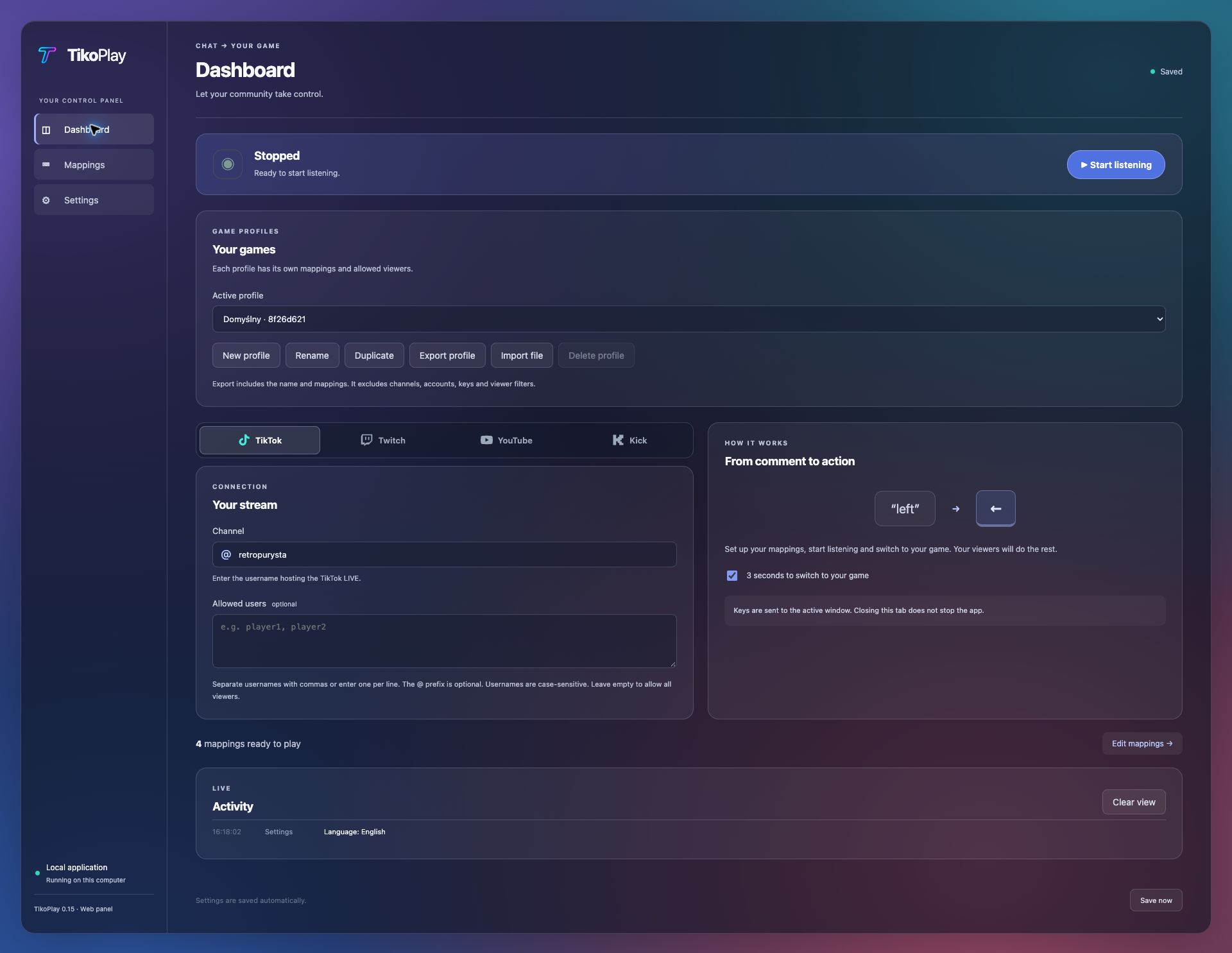
Map “left” to an arrow key, “jump” to Space, or a command to a key combination. Matching uses the whole message, ignoring letter case and surrounding spaces.
Keep separate mappings, viewer filters and spam limits for each game. Start with presets like WASD or arrow keys, duplicate a setup, and import or export your profiles. New profile exports include your limits; older profiles import with defaults.
Combine presses, timed holds and pauses into ordered sequences. Make one comment trigger a move, a short wait and a jump, with timing you control.
Let the whole chat join in or allow selected viewers. Follow incoming activity, use the optional start countdown and stop listening from the panel or system tray.
The chat simulator checks a saved profile, platform and viewer against a single comment or a timed scenario. See the planned steps or why a message was skipped, without connecting to chat or sending keys. You can also test while your live session runs independently.
The transparent OBS overlay shows available commands, the last completed action and whether chat control is paused. Choose what to display, adjust text size and accent color, and reuse the same local address after restarting TikoPlay. Viewer names are hidden by default.
Set separate cooldowns for each viewer and repeated commands, with limits saved per game profile. Adjust how many actions can wait and how long they stay valid. A full queue skips new commands; an action that has already started is not cut short by its expiry time.
Follow exact session counters for accepted, executed and skipped or cancelled commands, grouped by reason. Inspect the last 30 decisions to understand cooldowns, viewer filters and queue pressure. Counters refresh once a second and reset when you start a new session.
Enable optional game protection and select a running application. Switching away, closing the game or losing focus information pauses keyboard output, clears queued actions and releases held keys while chat stays connected. Returning to the game does not resume control automatically.
Stop listening with the global Ctrl + Alt + Shift + F10 shortcut, without returning to the panel. Choose F9 or F11 instead if needed and check the shortcut status in the panel. After a focus pause, request Resume control and switch back to the game; control resumes after three seconds of continuous focus.
03 / FROM SETUP TO SHOWTIME
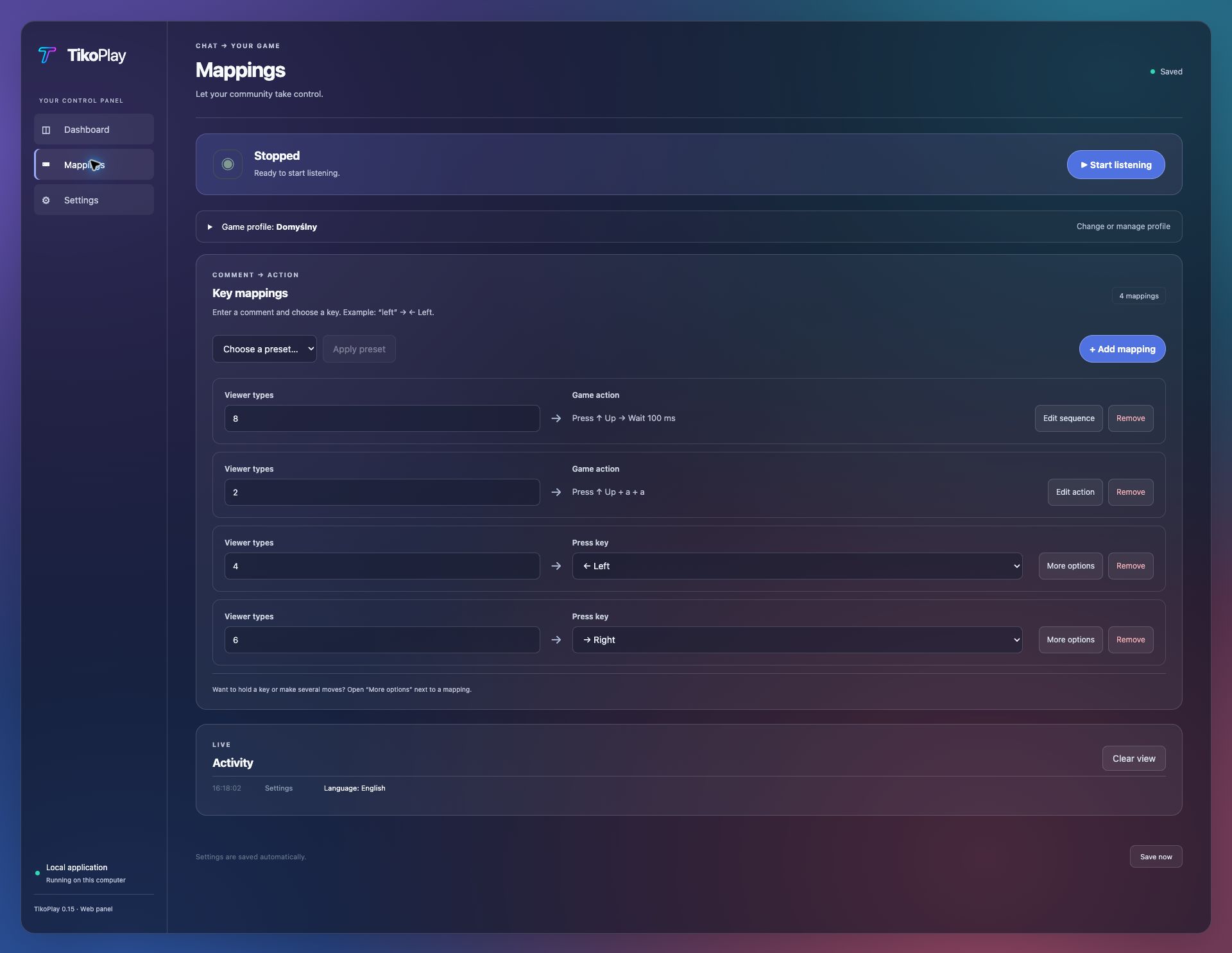
Open TikoPlay, select your chat platform and enter your channel or live stream. Complete any connection setup for that platform.
Pick a game profile or create your own. Add the comments your viewers should type and choose the keys or sequences they will trigger. Save your setup and check it in the chat simulator before going live.
Start listening and switch to your game. Use the optional three-second countdown to get ready, then let your community play.
Keep your game in focus. Keys go to the active window. Enable Game Protection before listening to pause control when you switch away. Closing the browser tab does not stop TikoPlay; use Stop in the panel, the system tray menu or an active emergency shortcut.
04 / BEFORE YOU GO LIVE
Before starting the listener, open Game Protection, select your running game, enable protection and apply the settings. Protection is off by default and covers the whole application, including its other windows and dialogs. It does not focus the game or send keys to the background. After restarting TikoPlay, select the game and enable protection again; the shortcut resets to F10. After restarting the game itself, stop listening and select its new process. Check that the shortcut is active; a failed shortcut change keeps the previous working registration. Focus detection and keyboard input are separate system operations, so protection reduces risk but cannot guarantee blocking every key during a window switch. Native Windows/game checks and physical shortcut verification in the packaged app remain pending.
For each profile, set a command cooldown and a per-viewer cooldown from 0 to 60,000 ms; zero disables that limit. Choose 1–100 waiting actions and an expiry time of 100–5,000 ms. Defaults are 300 ms per command, no per-viewer cooldown, 100 waiting actions and 1,000 ms validity. Save changes, then Stop and Start listening to apply them. A full queue skips new arrivals without using their cooldown, and expiry is checked before execution. These controls do not prevent bots or multiple accounts.
The activity log shows a limited sample during heavy traffic so chat spam does not overwhelm the panel. Use the exact session counters and the last 30 decisions in Spam Controls to diagnose skipped commands. These statistics are separate from the OBS overlay, which still updates after each confirmed action.
Try one comment or up to 1,000 messages over 60 seconds of virtual time, including a ready-made spam example. The report explains viewer filtering, missing mappings, cooldown, a full queue and expired actions. It uses the same saved profile limits as live control, shows their values, ignores unsaved drafts and flags an outdated report after configuration changes. The simulation does not affect live chat, its queue or keyboard output. It predicts action timing, not actual game or system latency.
In TikoPlay, open OBS Overlay, enable it, save and copy its address. Add a Browser source in OBS, paste the complete overlay URL and start with a 900 × 600 canvas. Run OBS and TikoPlay on the same computer. The overlay only displays information; it cannot start listening or change your settings. Its preview uses sample data, and simulator results do not appear in the live overlay. If OBS loaded the source before TikoPlay started, refresh that source. Browser and automated checks have passed; verification in actual OBS and on Windows is still pending.
TikoPlay sends keyboard input to the active application. Use a game that accepts those inputs and allows this kind of automation. Presets are editable starting points, not dedicated game integrations. A game is not included.
Use one platform at a time. TikTok needs a live channel. Twitch requires account authorization and a configured Twitch Client ID; the current test package does not include one. YouTube Live requires an active stream, a YouTube Data API key and available API quota. Kick uses an unofficial integration that may be affected by platform changes.
No. Viewers type commands in the platform’s regular live chat. TikoPlay runs on the computer with your game. Your computer needs an internet connection to receive chat messages.
It responds to matching text messages. Gifts, likes, paid events and audience voting are not controls in the current version.
Choose the Windows or macOS package for your computer from GitHub Releases and read that release’s installation notes. macOS builds are not notarized. Keyboard control may require system permissions. Test your setup before going live; platform compatibility and input latency can vary.
READY WHEN YOUR CHAT IS.
Download TikoPlay, bring a game and give your community something to play for.
Get TikoPlay Source code & setup guide ↗WINDOWS / macOS · CHECK RELEASE NOTES BEFORE INSTALLING